To really enhance the browsing speeds in firefox do the following. After this small hack I feel its faster than Chrome, you can do and check for yourself.
1. Type “about:config” into the address bar and press enter (yeah its there!). Scroll down and look for the following entries:
network.http.pipelining
network.http.proxy.pipelining
network.http.pipelining.maxrequests
Normally the browser will make one request to a web page at a time. When you enable pipelining it will make several at once, which really speeds up page loading.
2. Alter the entries by double clicking on them
Set “network.http.pipelining” to “true”
Set “network.http.proxy.pipelining” to “true”
Set “network.http.pipelining.maxrequests” to 30.
This means it will make 30 connection requests at once.
3. Lastly right-click anywhere and select New-> Integer
Copy-paste the variable “nglayout.initialpaint.delay” and set its value to “0″.
This value is the amount of time the browser waits before it acts on information it receives.
voila!!, the firefox is faster now, try opening a really heavy page with images etc. (like yahoo music), you will notice the browsing is much faster now.
Reference: forevergeek.com

Showing posts with label firefox tip. Show all posts
Showing posts with label firefox tip. Show all posts
Wednesday, October 7, 2009


Monday, November 24, 2008
Firefox: Google Search in the Address Bar
How to do enable Google search with Firefox’s address bar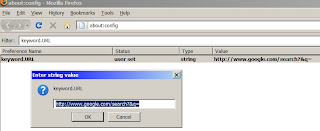
1. On the address bar type: about:config
2. Press Enter
3. Access the about:config page.
4. Find the keyword.URL preference name, by writing in "Filter:” field
5. Double-click on it to change the string value to http://www.google.com/search?&q=
6. Click OK and close the about:config page/tab
7. Voila, it works perfectly, very convenient

1. On the address bar type: about:config
2. Press Enter
3. Access the about:config page.
4. Find the keyword.URL preference name, by writing in "Filter:” field
5. Double-click on it to change the string value to http://www.google.com/search?&q=
6. Click OK and close the about:config page/tab
7. Voila, it works perfectly, very convenient
Subscribe to:
Posts (Atom)